Weapon Type Editor
-
Weapon Type Editor Tutorial
Getting started
Start by launching your game with Epic Fight installed. From the main menu, click on the 'Mods' button and search for 'Epic Fight.' Once you find it, select it and click on 'Config.' This will open the editor window, allowing you to make your desired changes.
Create your weapon type:
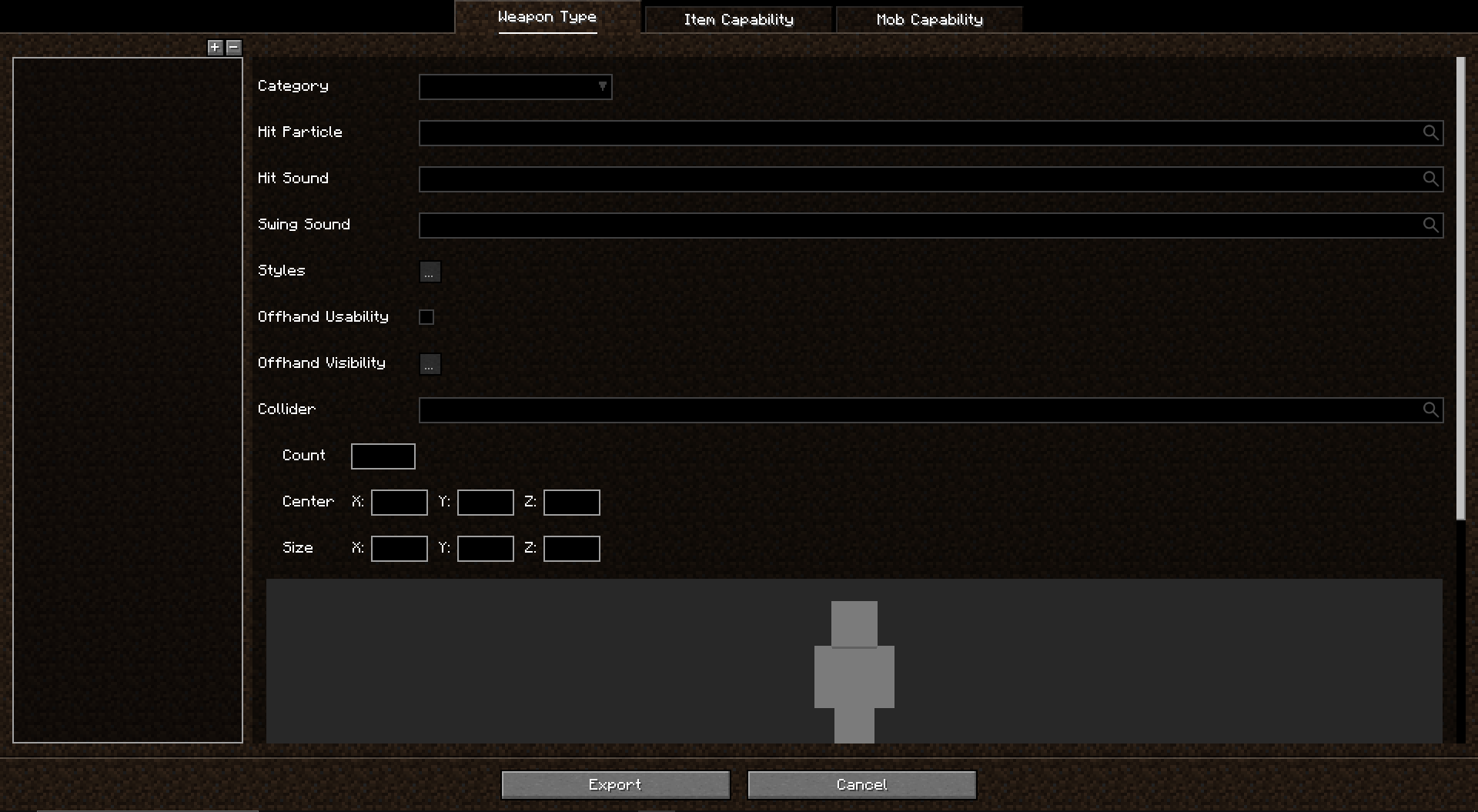
Weapon Types are a data set in Epic Fight that can group items with similar properties under a shared category. Items with similar characteristics are assigned the same weapon type, an example of that would be how both the gold and iron swords share the weapon type "Sword".
Weapon Categories
Weapon Categories classify weapons of similar types into distinct groups. This classification system primarily determines the visibility & style of weapons when they are paired together.
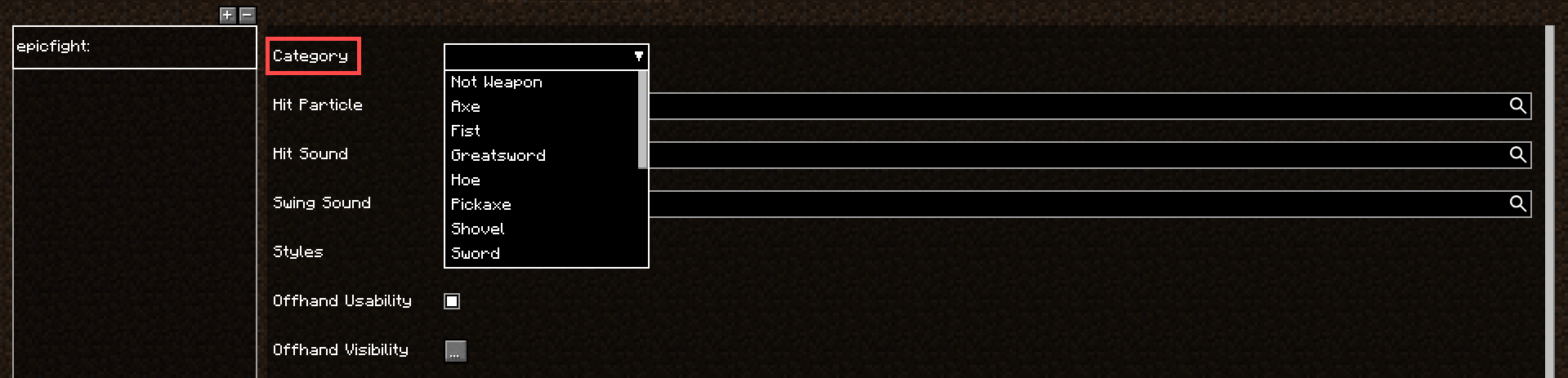
For instance, if you hold a sword in your main hand and a dagger in your offhand, the dagger will become invisible, as they do not share the same weapon category. A spear adopts a two-handed fighting style when the offhand is empty. However, if the player equips an item categorized under the "Shield" weapon category, the spear switches to its one-handed combat style.
This is an optional setting that isn’t necessary for your weapon to function, but we highly recommend choosing the option that best fits your specific scenario.
Warning
Epic Fight does have some specific exceptions where certain weapon combinations remain visible, even if their categories differ. An example would be how shields and spears belong to different categories, but they remain visible when used together.
Weapon Effects
You can also customize your weapon's hit particles, hit sounds, and swing sounds:
- Hit Particles: These are visual effects generated when you damage entities using items assigned to this weapon type.
- Hit Sounds: These sounds play whenever you successfully hurt an entity.
- Swing Sounds: These effects are triggered when performing an attack, regardless of whether it connects with a target.
Weapon Style
Defining the styles of your weapon type is a mandatory step for your datapack to function properly. Styles represent the player's current state of how the weapon is being held and used during combat.
You can define a weapon to have one style or two distinct styles, such as One-handed and Two-handed, like the Longsword.
What Can Styles Do
-
Customize Combo Animations
- Different styles can have unique attack combos, giving each style its own feel and combat rhythm. -
Assign Innate Skills
- Styles can determine which innate skills are available to the player while using a weapon. -
Conditional Styles
- You can define styles that activate based on specific play conditions. For instance, a weapon might switch to a two-handed style only when the offhand is empty.
Conditions
| Key | Feature | Arguments |
|---|---|---|
| health | Checks the entity's health. | double "comparator": enum:(greater_absolute, less_absolute, greater_ratio, less_ratio) |
| offhand_item_category | Checks the weapon category of the item held in the OffHand | - |
| player_name | Checks the name of the player | - |
| random_chance | Checks if the random value is higher than the given argument | double |
| skill_active | Checks whether a specific skill is activated | - |
| within_angle | Checks if the angle towards the target is within the given argument. | "min": double "max": double |
| within_angle_horizontal | Checks if the Y-axis angle towards the target is within the given argument. | "min": double "max": double |
| within_distance | Checks the distance between target and attacker, if they are within the given arguments | "min": double "max": double |
| within_eye_height | Checks if the Y distance between target and attacker is smaller than the attacker's eye height | - |
Comparators
Keys marked with arguments labeled as "double" should utilize the Double data type, commonly used in Java. It represents decimal numbers & allows for precise values like 1.5, 0.25, or 10.0
-
Absolute
- Compares the entity's current health as a raw value.
- Example: If the condition is set togreater-absolutewith a parameter of10, it will pass when the entity's health is greater than 10. -
Ratio
- Compares the entity's current health as a percentage of its maximum health.
- Example: If you have 5 health out of a maximum of 10, your health ratio is 50%.
- Settinggreater-ratio 0.5will pass only when the entity's health is above 50% of its maximum.
OffHand Setup
After setting up the basics, you can proceed to configure Offhand Validators. These allow you to control the visibility of weapons equipped in the offhand. Use the Offhand Usability checkbox to determine whether a weapon should be visible when held in the offhand.
You can also define specific conditions under which a weapon will be visible in the offhand. For instance if a greatsword is equipped in the main hand and a regular sword is in the offhand, the player will switch to a two-handed style, in this style, the offhand item becomes invisible because two-handed weapons restrict offhand usage.
Validators can be set up through the Offhand Visibility menu, allowing you to specify when the offhand item should or should not appear. You may also utilize the same conditions available for styles.
Colliders
Collider Boxes are used in games to calculate collisions between objects. In Minecraft, you can visualize hitboxes by pressing F3 + B. In Epic Fight, you can either select a preset collider, or define a custom collider tailored to your weapon's needs.
- Count
- Determines how many colliders are created between the previous and current tick.
Warning
Setting this value too high can negatively impact performance, so adjust it carefully.
-
Size
- Customize the size and position of your collider using the provided options. -
Center
- Is the anchor point that determines the collider's placement relative to the weapon or entity.
Use the preview screen to visualize your collider. The preview allows you to see how the collider scales and aligns with the player model.
Combos
Let’s define the combo animations for your weapon. These control the attack animation sequences for each style you’ve created. Just pick a style you’ve already created, or choose something like One-handed or Two-handed.
You must add at least one animation for:
- Combo attacks
- Dash moves
- Air slashes
Without these, the weapon’s combat won’t work properly.
Innate skills
Innate skills, are abilities that are inherent to a certain weapon style. You may learn which passives do what by playing with Epic Fight's vanilla weapons or by checking the wiki page on skills. Make sure to select a style and a skill to be used (addons may add in new innate skills to be used).
Living animations
Finally, we’ll set up the weapon’s living motion based on the styles you’ve created. Living motion determines how the player behaves in the world, such as being idle, walking, or running.
- Merge Animations - You can combine existing animations for a more dynamic result. Simply select the living motion you want to merge and choose an animation to combine with it.